Coach guide· Version 1.0

Welcome to MyNutrack Coach

Learn how to build your nutrition programmes, manage your clients and follow their progress, simply.

Updated on 18 October 2026

Screenshot — Welcome to MyNutrack Coach
Screenshot of the app in French.
Chapter 01

Discover MyNutrack Coach

MyNutrack Coach is your space to coach clients: you prepare their meals and plans, they get them in their MyNutrack app, and you see what they really eat.

1

What you can do

Everything works in the MyNutrack app (Coach tab) or in the web Coach Space, with the same account.

App and web

Food
An ingredient in your food book: a food from the MyNutrack database, or your own with its values.
Meal
A combination of foods and quantities, reusable as often as you like.
Plan
Meals placed on days (1 to 28), sent from a start date.
Client (adhérent)
A MyNutrack user who accepted your invitation. They see your meals on their home screen.
Follow-up
What your clients eat, skip or change, their weight and their messages.
2

The link between you and your client

Your client keeps their own account and diary; by accepting your invitation, they let you see their daily calories and macros, their weight trend and the meals you plan for them.

App and web

  1. 1You send a meal or a plan: it appears on your client’s home screen.
  2. 2They mark each meal: “Mark as eaten”, “I ate something different” or “Skip this meal”.
  3. 3You see the result and talk with them in messages.
Chapter 02

Coach sign-up

You sign up in the MyNutrack app, in five steps. You can also apply with your existing MyNutrack account: Settings → “Become a coach”.

1

Open the coach sign-up

On the sign-in screen, choose the Coach tab, then “Apply”.

App

  1. 1Open the MyNutrack app.
  2. 2Tap the “Coach” tab.
  3. 3Tap “Apply” under “Not a coach yet?”.
  1. 1Coach tab
  2. 2“Apply” link
2

Step 1 — About you

Enter your name and at least one way to sign in: email, phone, or both.

App

  1. 1Current step out of 5
  2. 2Email or phone: at least one of them
  3. 3Go to the next step
Field
First nameRequiredYour first name, as your clients know you.2 to 80 characters
Last nameRequiredYour family name.2 to 80 characters
EmailOptionalWhere you get the guide and news about your application.Valid email address
Phone numberOptionalAlso works to sign in.International format, e.g. +213 555 12 34 56
3

If a field turns red

Each step is checked before the next one; the message under the field says what to fix.

App

  1. 1Name too short
  2. 2Neither email nor phone
“Enter at least 2 letters.”
First or last name too short.
“Enter an email or a phone number.”
At least one of them is needed.
“Use the international format…”
The number must start with +213 (or your country code).
“An account already uses this email or phone number.”
Sign in with that account, or apply from Settings → “Become a coach”.
4

Step 2 — Your certification

Upload the coaching or nutrition certificate our team will verify.

App

  1. 1Tap “Choose file”.
  2. 2Pick your certificate.
  3. 3Check the preview, then “Continue”.
  1. 1“Choose file” opens your files
  2. 2Only the review team can see it
Field
CertificateRequiredYour coaching or nutrition diploma or certificate.PDF, JPG or PNG · up to 5 MB
5

Step 3 — Your online presence

Optional: add your Instagram, Facebook or TikTok profiles so clients recognise you.

App

Field
Social profileOptionalYour username (@name) or the profile link.Instagram, Facebook, TikTok · one profile per network
6

Step 4 — Secure your account

Choose the password of your Coach Space and confirm it.

App

Field
PasswordRequiredIt protects your clients and their data.At least 8 characters
Confirm passwordRequiredThe same password again.Same as the password
7

Step 5 — Review & submit

Check your details; “Edit” takes you back to each part. Tap “Submit for review”.

App

8

Application submitted

Your profile and certification go to review; you get this guide by email.

App

  1. 1Tap “Done” to follow your application.
  2. 2A question? “Contact support”.
Chapter 03

Approval and activation

Our team checks every coach by hand. Once you are approved, a one-time activation opens your Coach Space.

1

The stages of your account

Your status shows in the app and in the web Coach Space; “Check status” refreshes it.

App and web

  1. 1Current stage
  2. 2Refresh the status
  3. 3Write to the team
Under review
Application received: our team checks your certificate and profile.
Activation pending
Application approved: you still need to activate your account. The web shows “Activate your Coach account”.
Payment being verified
Payment sent: we are confirming it (CCP: checked by hand).
Your Coach account is active
Your Coach Space is open. Activation is never asked again.
Not approved
Application refused: read the review team’s note, then contact support.
Suspended
Space paused by the team: contact support.
2

After approval

You get a notification and an email: your application is approved, activation is left.

App

  1. 1Review done
  2. 2Next step: activation
3

Activate your account (1999 DA, one time)

Sign in to the web Coach Space with the same email and password, then choose how to pay.

Web Coach Space

  1. 1Open mynutrack.site/en/space/coach and sign in.
  2. 2Choose “CIB card”, “EDAHABIA card” or “CCP transfer”.
  3. 3Tap “Pay 1999 DA”.
  1. 1Application approved
  2. 2One-time fee
  3. 3Payment methods
4

Pay by CCP

Send exactly the amount shown to the account displayed, then enter the transfer reference: we activate after checking it.

Web Coach Space

  1. 1Copy the account holder, CCP number, key or RIP.
  2. 2Pay at the post office or with BaridiMob.
  3. 3Enter the “Transfer reference”, then “Send for verification”.
  1. 1Account details to copy
  2. 2The number printed on your receipt
5

Confirmation by MyNutrack

Only MyNutrack’s confirmation activates your account: the page updates by itself and you won’t be charged twice.

Web Coach Space

Payment being verified
We confirm your payment with the bank, or check your CCP transfer.
Payment not completed
You were not charged: try again, choose another card or pay by CCP.
Your Coach account is active
Welcome! “Open my Coach Space”.
Chapter 04

Understanding the dashboard

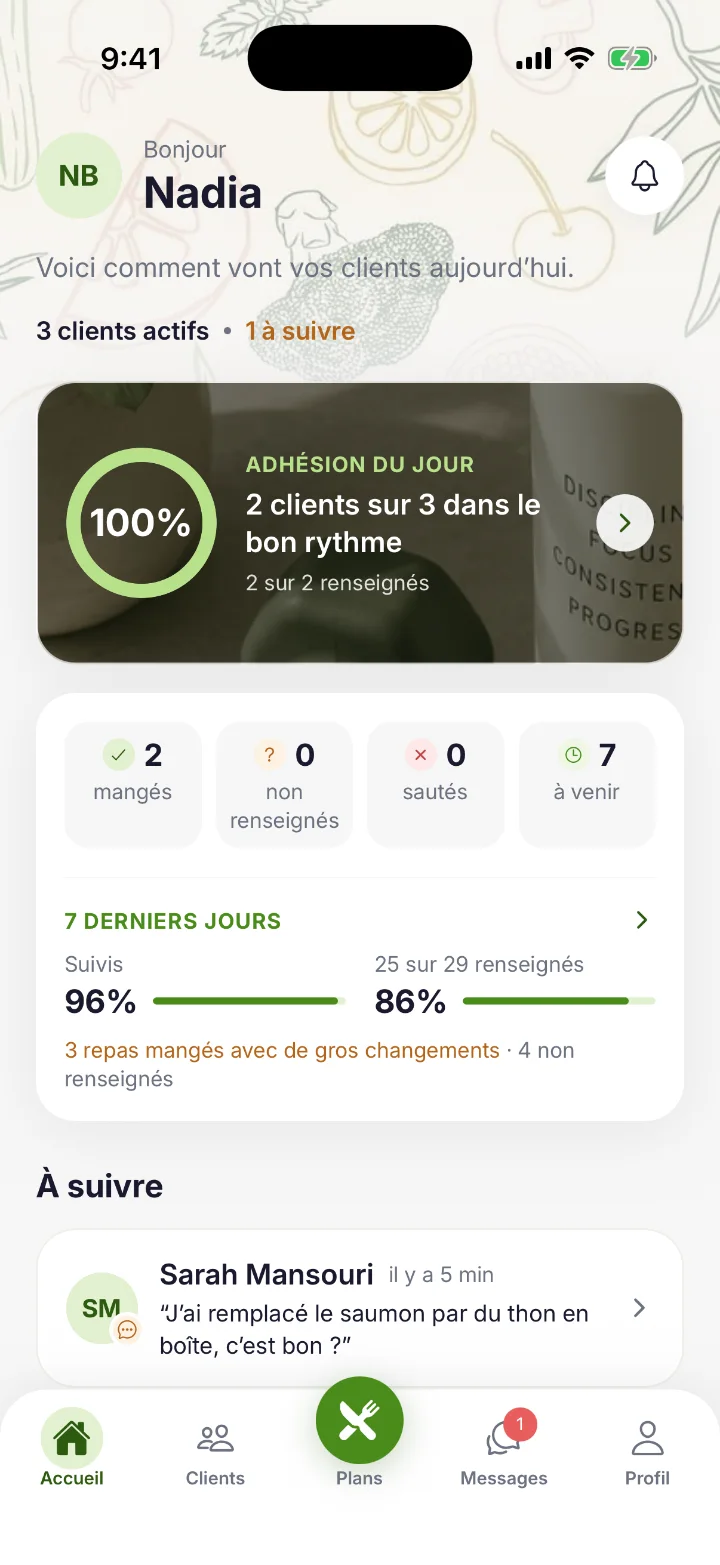
Home tells you at a glance how your clients are doing today. The numbers update by themselves as soon as a client reports a meal; pull the screen down to refresh.

1

Today’s numbers

Every number is computed on each client’s own day, in their time zone.

App

  1. 1“active clients”: clients who accepted your invitation and whose coaching access is running. “need attention”: those who need you (see below).
  2. 2“Today’s adherence”: share of meals followed among those reported today (eaten as planned or with changes). The title counts clients “on track”. Tap the card to open today’s activity.
  3. 3“eaten”: meals marked eaten, as planned or with changes.
  4. 4“not reported”: meals whose time has passed (plus 2 hours of grace) with no answer from the client. They don’t count as skipped.
  5. 5“skipped”: meals the client marked as skipped.
  6. 6“pending”: meals whose time hasn’t come yet.
Last 7 days
Under today’s numbers: “Followed” (meals eaten among those reported) and “x of y reported” (meals reported among those due). Tap it for the week’s activity.
2

Needs your attention, shortcuts and your clients

Further down, Home lists the clients who need you, your shortcuts and your clients of the day.

App

  1. 1“Needs your attention”: up to 4 clients, most urgent first; “See all” opens the full list. A note or a skipped meal opens that meal, otherwise the client’s page.
  2. 2“Invite client”: opens the invitation (chapter 9).
  3. 3“Create plan”: opens meal creation, to place in a plan afterwards.
  4. 4“New group”: brings clients together (chapter 11).
  5. 5“Message”: opens your conversations.
  6. 6“Your clients”: one card per client with today’s progress and status.
Unanswered note
The client wrote on a meal in the last 7 days and is waiting for your answer.
Skipped meal
A meal skipped today.
No meal eaten
Meals are late today and nothing has been eaten.
Few meals reported
Less than half of the due meals reported over 7 days (at least 3 due).
Plan ending
The current plan ends within 2 days and nothing is planned after it.
Nothing planned
No meal planned for the next 3 days.
Inactive
The app hasn’t been opened for 3 days or more.
3

Each client’s status

The chip on each client card sums up their day.

App and web

All done
Every meal of the day is reported.
On track
The reported meals follow the plan.
Behind
Some due meals aren’t reported yet.
Needs attention
The client is in the “Needs your attention” list.
Inactive
The app hasn’t been opened for several days.
No plan
No meal planned today.
Nothing due yet
Today’s meals aren’t due yet.
4

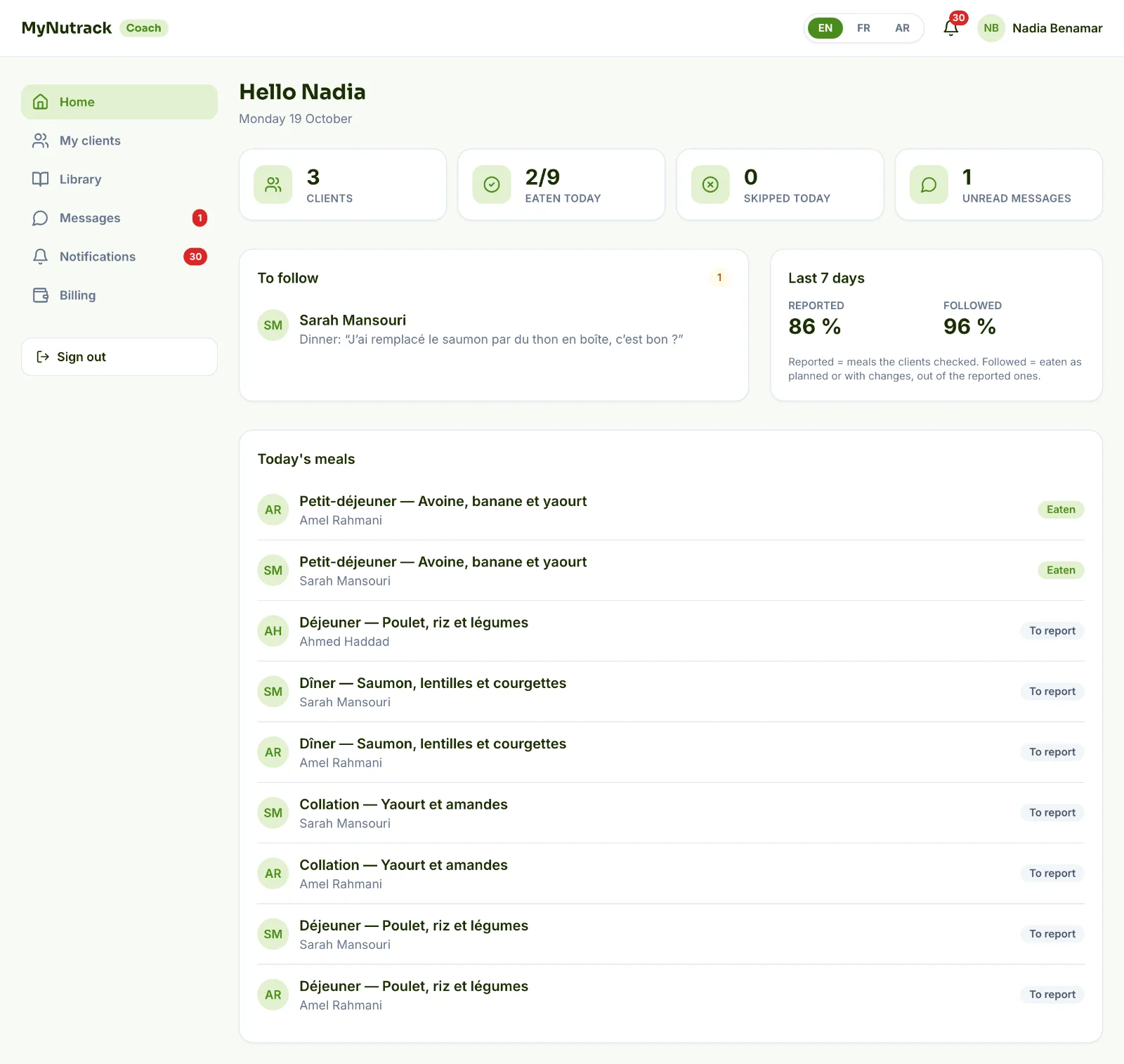
The same dashboard on the web

The web Coach Space shows the same information, with the full list of today’s meals.

Web Coach Space

  1. 1“Clients”: clients whose coaching access is running.
  2. 2“Eaten today”: meals marked eaten out of today’s planned meals.
  3. 3“Skipped today”: meals marked skipped today.
  4. 4“Unread messages”: messages from your clients not read yet.
  5. 5“To follow”: the same rules as in the app.
  6. 6“Last 7 days”: “Reported” and “Followed”.
  7. 7“Today’s meals”: every meal sent today and its answer.
Chapter 05

Create your first food

Your food book gathers the foods you use in your meals: foods from the MyNutrack database, or your own, with your own values.

1

Open your food book

Plans tab → “Library” → “Food book”.

App

  1. 1“From MyNutrack”: search the database and add a food to your book.
  2. 2“Create a food”: enter your own.
2

Create your food

Enter a portion and its nutrition values, then a description (or dictate it) or a photo.

App

Field
TitleRequiredThe name your clients will see, e.g. “Homemade oat pancake”.2 to 120 characters
PortionRequiredThe quantity your values refer to, and its unit.g, ml, piece or portion
Calories (kcal)RequiredThe energy of this portion.Number, 0 to 5,000
Protein (g)RequiredFor this portion.Number, 0 to 500
Carbs (g)RequiredFor this portion.Number, 0 to 500
Fat (g)RequiredFor this portion.Number, 0 to 500
Fibre, Sugar (g)Optional“Add fibre and sugar” to enter them.Sugar can’t exceed carbs
Description or photoRequiredWhat it contains, quantities, cooking… The “Speak” mic writes what you say.At least one of them
3

Values for the portion, not per 100 g

You enter the values of the portion you set; MyNutrack converts them for any other quantity.

App and web

Example
Homemade oat pancake, 80 g portion: 187 kcal, 5.7 g protein, 36.2 g carbs, 2.7 g fat.
In a meal
160 g of this pancake count as 374 kcal (two portions).
Piece or portion
The values are those of one piece; 2 pieces count double.
4

Save

Tap “Save to my food book”: the food is ready for your meals, marked as your own.

App

“Fill in the portion, calories, protein, carbs and fat.”
A required field is empty.
“Sugar can’t be more than carbs.”
Fix the sugar or the carbs.
“Protein, carbs and fat weigh more than the portion.”
For a portion in g or ml, the macros can’t weigh more than the portion.
“Add a description or a photo.”
At least one is needed.
5

On the web

Library → “Foods”: “Add from the catalog” or “Create a food”, with the same fields.

Web Coach Space

  1. 1Search the MyNutrack database
  2. 2Create your food
Chapter 06

Create your first meal

A food is an ingredient; a meal is a combination of foods with their quantities. You create it once and send it as often as you like.

1

Open your meals

Plans tab → “Library” → “Meals”, then “New meal”.

App

2

Build the meal

Example: “Lunch — Chicken, rice and vegetables”, 150 g chicken, 180 g cooked rice, 120 g broccoli and 5 g olive oil.

App

Field
Meal nameRequiredWhat your clients will read.2 to 150 characters
Meal typeRequiredBreakfast, Lunch, Dinner, Snack, Pre- or Post-workout.
Meal timeOptionalWhen the client should eat it, or “Any time”.
FoodsRequired“From my food book” or “Search all foods”, then each quantity.1 to 50 foods
ServingsRequiredHow many servings these quantities make; the app shows the kcal of one serving.1 by default
PreparationOptional“Add preparation instructions”: one step per line.
3

Save

“Save the meal” stores it in your meals; “Save and plan” then offers to send it.

App

4

On the web

Library → “Repas” → “New Repas”: name, meal, time, servings, foods and preparation.

Web Coach Space

  1. 1Repas tab
  2. 2Create a meal
  3. 3A saved meal, with its kcal and macros
Chapter 07

Create your first nutrition plan

A plan places your meals on days (1 to 28). You send it from a start date to one or more clients; each day becomes their dated meals.

1

Open your plans

Plans tab → “Library” → “Plans”, then “New plan”.

App

2

Give it a title, a goal and a length

Example: a 7-day weight-loss week.

App

Field
TitleRequiredThe plan’s name, e.g. “Cutting week”.2 to 120 characters
DescriptionOptionalGoal, advice for the client…2,000 characters max.
GoalOptional“Lose Weight”, “Maintain Weight” or “Gain Weight”; helps you find the plan again.
Number of daysRequiredShortcuts 1, 7, 14 or 28 days, or “+” / “−”.1 to 28 days
3

Add meals to each day

On each “Day”, tap “Add a meal” and pick one of your meals (or create one).

App

  1. 1Tap a meal of the day to change its servings, time or note for that day.
  2. 2“Copy day” copies a day onto the other days you choose.
  3. 3Move or copy a meal to other days from its menu.
4

Draft or published

“Save draft” saves without sending anything; “Publish” makes the plan ready to send; “Publish and plan” goes straight to sending.

App

Draft
Editable at will, can’t be sent.
Published
Ready to send. Every publish keeps a version (“Version history”).
Updating clients
If clients follow the plan, MyNutrack offers “Update their plan” from tomorrow. Today and meals already reported don’t change.
5

Send the plan to your clients

Choose clients or groups and the start date: day 1 of the plan falls on that date.

App and web

  1. 1Choose the “Start date”.
  2. 2Tick groups or clients.
  3. 3Check the summary, then “Send”.
Skip these slots
A meal already exists in that slot: keep it and send nothing on that date.
Replace
Replaces existing meals; those already reported or commented are kept.
Add as well
Keeps both meals in the slot.
6

Planning

Plans tab → “Planning”: the meals you sent, day by day, with what each client has already reported.

App

7

On the web

Library → “Plans”: “New plan”, then days, meals, portions and a note for each day.

Web Coach Space

Chapter 08

Managing clients

The Clients tab gathers your clients, your pending invitations and your groups.

1

Your client list

Search for a client, filter (“All”, “Needs attention”, “Inactive”…) and open their page.

App

  1. 1Search by name
  2. 2Invitations not accepted yet
2

From MyNutrack account to active client

A client goes through these states; only the chip changes.

App and web

  1. 1Invite a client
  2. 2Search
  3. 3Invitations waiting
MyNutrack user
Someone with a MyNutrack account. You invite the email of that account.
Invited
Your invitation is waiting in their app (“Pending invitations”). You can cancel it.
Invitation accepted
They appear in your clients: you see their diary and can send them meals.
Active client
Their coaching access is running (“Active”, or “Expiring soon” 3 days before the end).
Access expired
The month of access is over: their diary, meals and chat are locked until renewal.
3

Ending a coaching relationship

On the client’s page, “More” → “Remove client”: access to their nutrition data and messages stops.

App and web

Chapter 09

Invite a client and pay

You invite someone with the email of their MyNutrack account. You pay their coaching access: 500 DA per month per client.

1

Enter their account email

My clients → “Invite a client”, then the email they use on MyNutrack.

App and web

  1. 1Email of the client’s MyNutrack account
2

Pay their first month (500 DA)

MyNutrack checks the person isn’t already your client, then shows the month of access to pay.

Web Coach Space

  1. 1Choose “CIB card”, “EDAHABIA card” or “CCP transfer”.
  2. 2Pay 500 DA.
  3. 3Once confirmed, the invitation goes out by itself.
  1. 1One month of access for this client
  2. 2Choose how to pay
Already paid
“Already paid — the invitation is sent for free.”: a month is already paid for this person.
Already a client
They are already one of your clients: renew from Billing.
Invitation waiting
An invitation is already waiting for them.
CCP
The invitation goes out once our team has checked your transfer.
3

Your client accepts

They get an “invited you to their Coach Space” notification and see what they share before accepting.

App and web

  1. 1They tap “Accept” (or “Not now”, “Decline”).
  2. 2They appear in “My clients”.
  3. 3You can send them meals and plans.
4

When does the month start?

The paid month starts the day your client accepts: you lose no days waiting.

App and web

They decline or don’t answer in time
The paid month stays reserved for that person: inviting them again is free.
You remove a client
The paid period keeps running: inviting them again during it is free.
Calendar month
A month runs from a date to the same day next month (31 January → 28 or 29 February).
5

From the app

Clients → “Invite client”: enter the email, then “Send invitation”.

App

  1. 1MyNutrack account email
Chapter 10

Managing subscriptions

The “Billing” page gathers your activation, each client’s access and everything you paid to MyNutrack.

1

The Billing page

Web Coach Space → “Billing” (or Profile → “Billing & subscriptions” in the app).

App and web

  1. 1Activation paid once
  2. 2One subscription per client: dates, days left, amount paid
  3. 3“Expiring soon”: 3 days or less
  4. 4“Access expired”: to renew
  5. 5Every payment: date, item, amount, method, status
Active
Coaching access is running.
Expiring soon
3 days or less left.
Access expired
The expiry date has passed.
Waiting acceptance
Month paid, the client hasn’t accepted yet.
Payment pending
A payment has started but isn’t confirmed yet.
2

Renew a subscription

“Renew” adds one calendar month for 500 DA.

Web Coach Space

Before the end
The month is added to the end date: you keep every remaining day.
After expiry
The new month starts on the payment day.
3

What happens when access expires?

After expiry, access to the coaching features concerned is suspended until renewal.

App and web

For you
That client’s diary, meals and chat are locked. Everything is kept.
For your client
Their MyNutrack account, diary, subscriptions (such as Premium) and foods already in their diary stay intact.
After renewal
Everything opens again right away, history included.
Chapter 11

Channels and communication

Talk with each client privately, with a whole group, or right on a meal.

1

Your conversations

Messages tab: one private conversation per client and one chat per group.

App and web

2

Send a nutrition tip

Open the client’s conversation, write your tip and tap “Send”.

App and web

3

Create a group

Bring together clients with similar goals: a name, an optional description, then “Who’s in it?”.

App

  1. 1Home or Clients → “New group”.
  2. 2Name it (e.g. “Cutting — October”) and choose its members.
  3. 3“Create group”: its chat opens.
4

Notes and photos on a meal

Your client can comment on a meal or share a photo of it; you answer on the meal itself.

App and web

5

Who sees what?

Each exchange has its own audience.

App and web

Private conversation
You and that client only.
Group chat
You and the group members. A removed member loses access.
Note on a meal
You and the client who received that meal.
Photo on a meal
You and the clients who received the same meal or plan (first names only). The app warns before sharing.
6

Notifications

The bell opens “Coaching activity”: accepted invitations, reported meals, notes, photos and messages.

App and web

Chapter 12

Following your clients

A client’s page shows what they eat, how they follow your meals and how their weight changes.

1

A client’s page

Tap a client: their current plan and their 7-day consistency, at the top of their page.

App

  1. 1“Message”: write to the client.
  2. 2“Plan a meal”: send them a meal.
  3. 3“More”: remove the client.
Nutrition plan
“Day x of 7 · ends on …”. “Send the plan” sends another one; “Stop the plan” removes upcoming meals that aren’t reported.
Followed
Meals eaten (as planned or with changes) among those reported. An unreported meal isn’t counted as skipped.
x of y reported
Meals reported among those due.
Big changes
Meals eaten more than 15 % away from the planned calories: flagged, not penalised.
2

Coach meals and weight

Further down: the meals you planned for them that day, with their answer, then their weight.

App

Coach meals
Each meal of the day and its answer: Eaten, Eaten with changes, Skipped, Not reported or Upcoming. Tap one to see what was eaten and the notes.
Period
At the top of the page: Day, 7 days, 30 days or a period you choose.
Weight
Latest weigh-in, change over 30 days and target weight, from the client’s weigh-ins.
3

Today’s activity

Home → “Today’s adherence” card: every client’s meals, with filters (eaten, not reported, skipped, pending, notes).

App

4

On the web

My clients → a client: today’s food diary, meals you sent, current plans, last 7 days and weight.

Web Coach Space

  1. 1Send a Repas
  2. 2Send a plan
  3. 3Today’s food diary
  4. 4Your meals and their answer
  5. 5Current plan
  6. 6Weight trend
5

Taking care of your clients’ data

Your clients’ diaries and weight are personal health data: handle them discreetly.

App and web

  1. 1Don’t share a screenshot of a client’s diary without their consent.
  2. 2Talk in MyNutrack rather than in public messaging apps.
  3. 3Remove a client who no longer wants to be followed.
Chapter 13

Profile, settings and support

The Profile tab gathers your Coach account, your certificate, billing, language and support.

1

Your profile

Your name, email, the “Verified coach” badge and your numbers: clients, groups, meals today.

App

My certificate
Opens the certificate sent with your application.
Social profiles
The profiles added at sign-up.
Billing & subscriptions
Activation, clients, payments (chapter 10).
My nutrition diary
Track your own meals in MyNutrack.
Language
Français, العربية or English, or your phone’s language.
Contact support
Write to our team from the app.
Sign out
Leaves your account on this device.
2

Contact support

In the app: Profile → “Contact support”. By email: support@mynutrack.site.

App and web

Frequently asked questions

How much does the Coach sign-up cost?

Activating your Coach account costs 1999 DA, one time, after your application is approved. It is never asked again.

Read the chapter
How much does a client cost?

500 DA per month per client, paid by you, the coach. The month starts when the client accepts your invitation.

Read the chapter
Why is my account pending?

Our team checks every certificate by hand. You get a notification and an email as soon as we decide; “Check status” refreshes the screen.

Read the chapter
How do I activate my account?

Once approved, sign in to the web Coach Space with the same account and pay the activation by CIB card, EDAHABIA card or CCP transfer.

Read the chapter
How do I create a meal?

Plans → Library → Meals → “New meal”: a name, a type, foods and their quantities. Calories are computed for you.

Read the chapter
How do I assign a plan?

Publish the plan, then “Plan” (or “Send” on the web): choose the start date and the clients or groups. For one client, open their page → “Send the plan”.

Read the chapter
How do I invite a client?

My clients → “Invite a client”, with the email of their MyNutrack account. They accept from their app.

Read the chapter
What if my payment fails?

If the page says “Payment not completed”, you were not charged: try again, choose another card or pay by CCP. For a refused CCP payment, the reason is shown: fix the reference.

Read the chapter
How do I renew a subscription?

Billing → “Renew” on the client’s row. Before the end, the month is added to the remaining days; after expiry, it starts on the payment day.

Read the chapter
Why is a client’s access blocked?

Their month of coaching access is over (“Access expired”). Everything is kept: renew and access opens again right away.

Read the chapter
Are my values per 100 g?

No: you enter the values of the portion you set (e.g. 80 g, or 1 piece). MyNutrack converts them for any other quantity.

Read the chapter
How do I contact support?

In the app: Profile → “Contact support”. By email: support@mynutrack.site.

Read the chapter

A question?

Our team answers every coach. Write to us, or use “Contact support” in the app.

support@mynutrack.site